Introducing Omni Designer: The Visual Report Builder Odoo Has Been Missing
Omni Designer is a visual report builder for Odoo powered by WebAssembly. Design pixel-perfect documents with drag-and-drop, instant PDF preview, and zero QWeb.
It is Friday afternoon. Your client opens a ticket: “Can we move the logo to the left and make the payment terms bold on the invoice?”
You open the QWeb template. Forty lines of nested XML. A <t t-foreach> wrapping a <table> wrapping a <tr> with inline style attributes you do not remember writing. You change a margin, refresh, and the footer is now overlapping the totals. You fix the footer, and the page break lands in the middle of a line item row.
This is the normal experience of building reports in Odoo. It works, but it is slow, fragile, and entirely disconnected from how the final document actually looks.
We built Omni Designer to replace that workflow.
What Omni Designer is
Omni Designer is a visual, drag-and-drop report builder that runs directly inside your Odoo instance. Instead of editing QWeb XML and refreshing to see results, you design on a canvas and see the layout take shape in real time.
It handles the full report lifecycle: layout, data binding, conditional logic, and PDF rendering - all without leaving the browser and without writing a single line of template code.
Watch the full introduction video to see Omni Designer in action:
A report in five minutes
Here is what designing a sales order report actually looks like in Omni Designer.
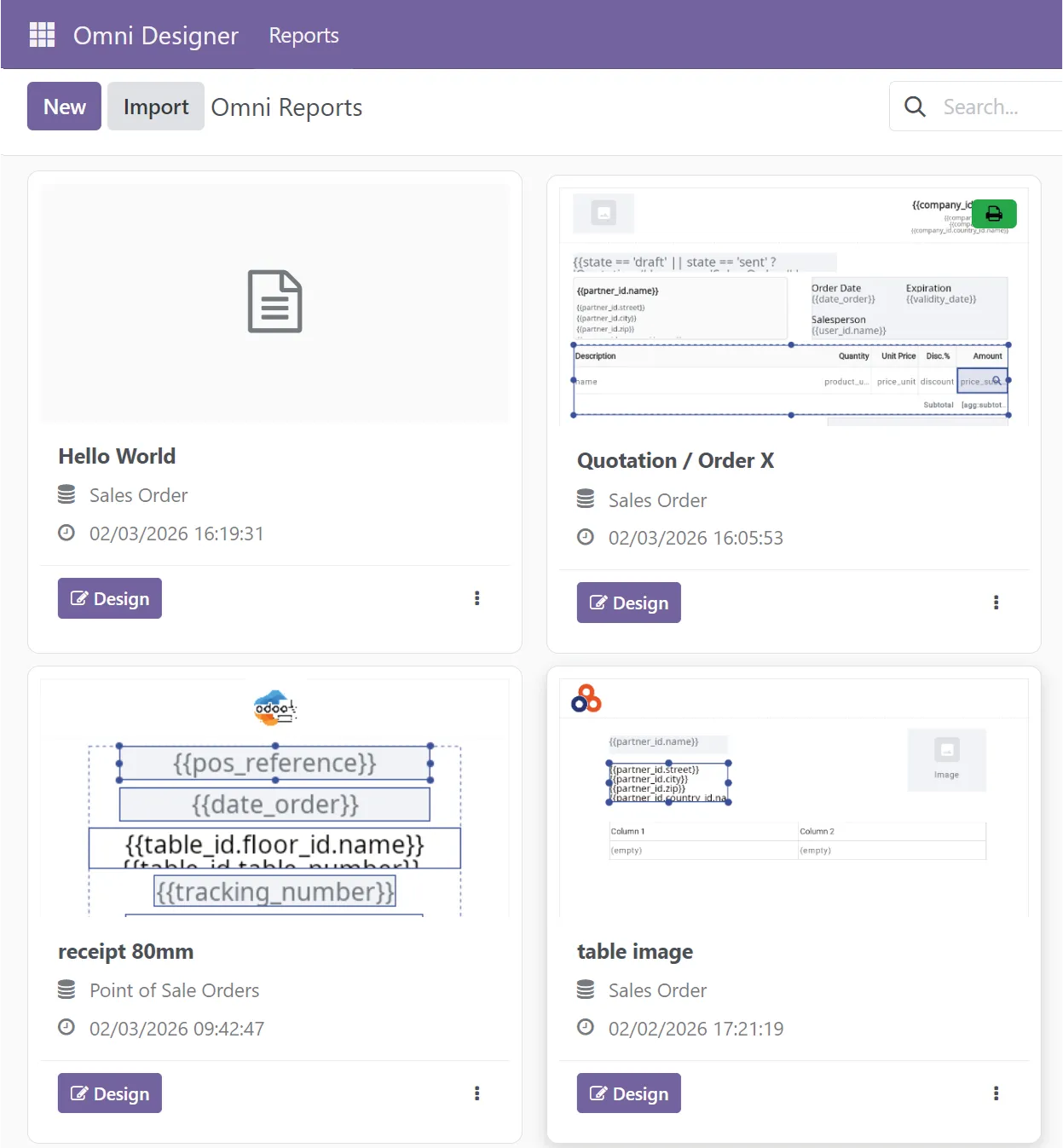
Open the designer
From any report template in Odoo, click Design. The full workspace loads inside your browser - a toolbar at the top, a component sidebar on the left, your canvas in the center, and a property panel on the right.
Drag components, bind data
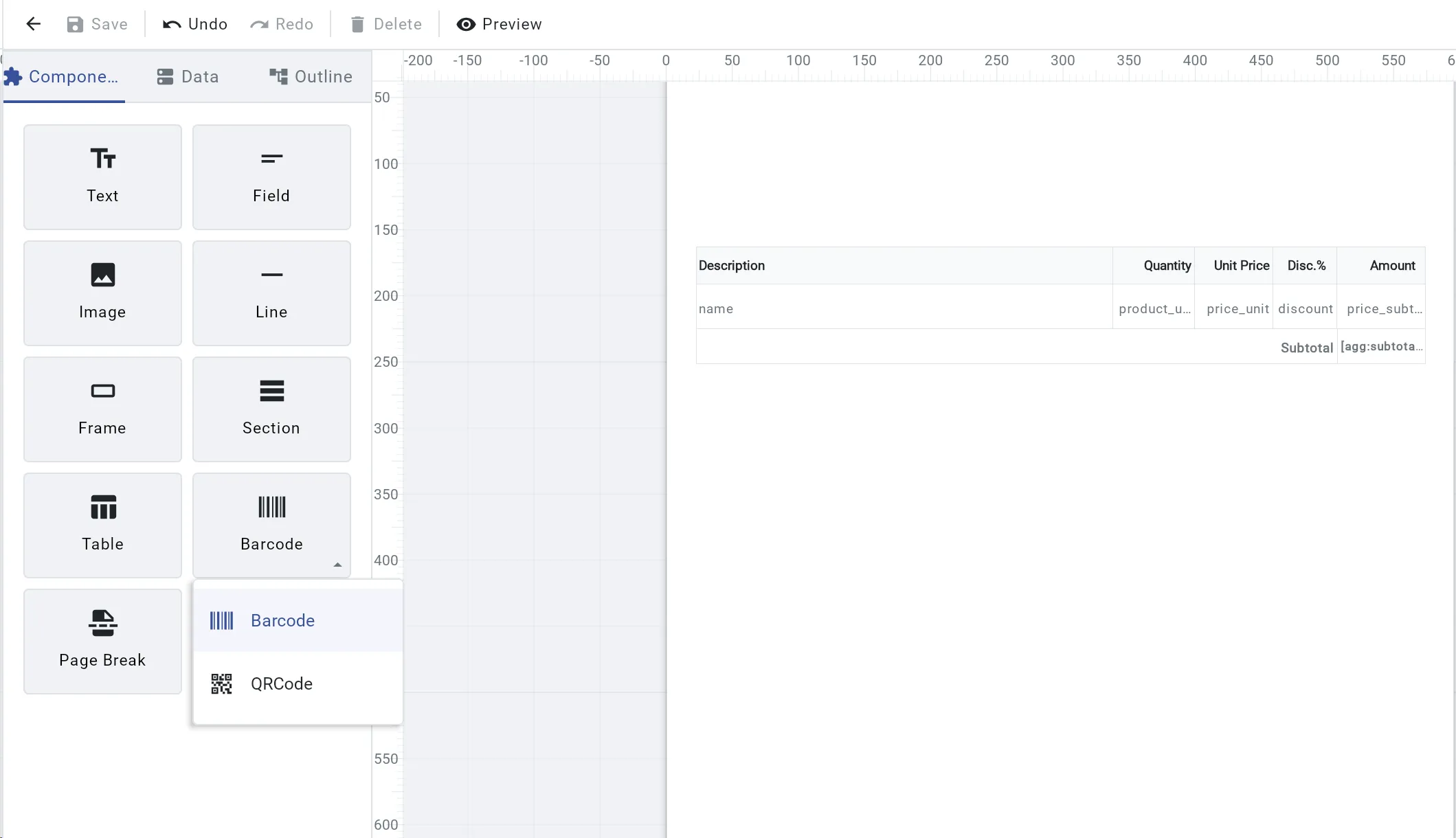
Open the Components tab and drag a Text element onto the canvas for your header. Need a company logo? Drag an Image element and point it at a static URL or bind it to a binary field.
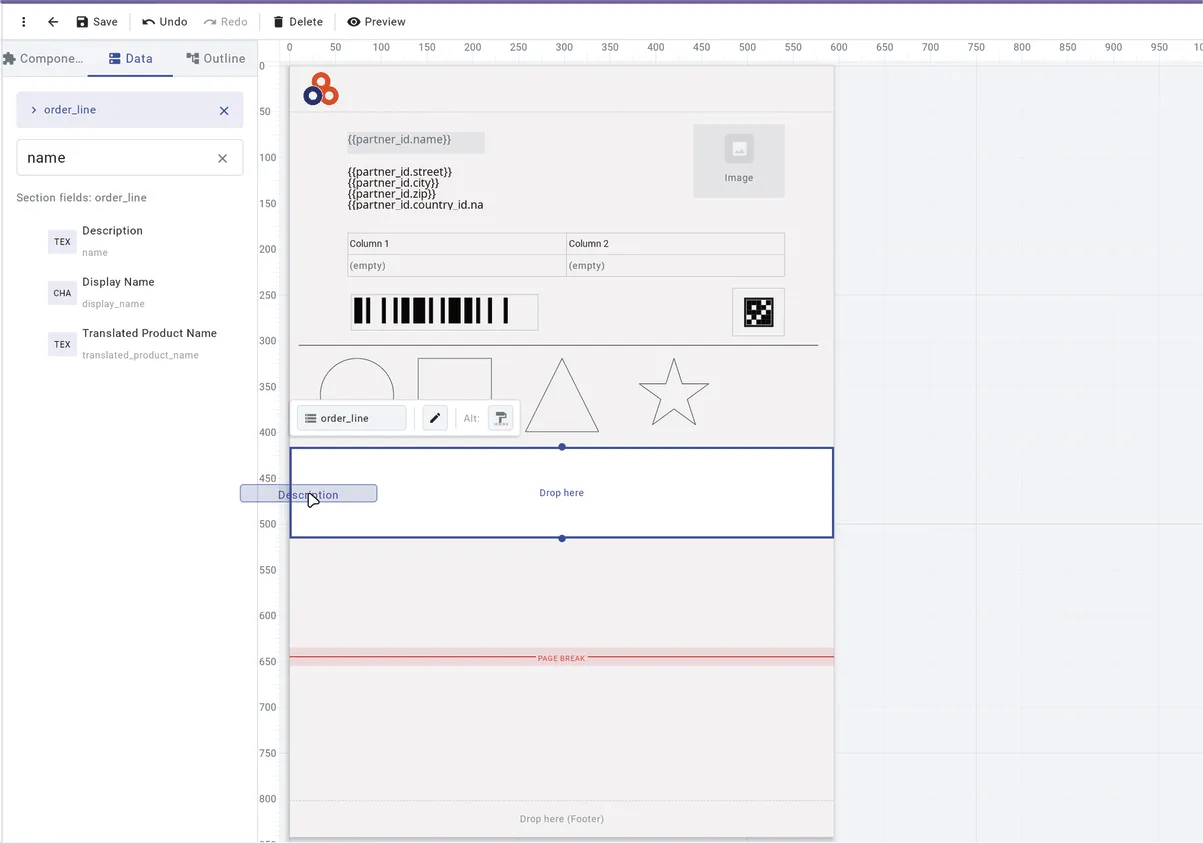
Now switch to the Data tab. You will see the full field schema of your report model - sale.order in this case. Expand partner_id to reveal name, email, street. Drag partner_id.name onto the canvas, and Omni Designer automatically creates a properly bound Field element. No expression syntax to memorize.
Build a line-item table
Here is where it gets interesting. Drag order_line (a One2many field) from the Data tab. Omni Designer recognizes it as a collection and can automatically create a repeating Section bound to that dataset. Every element you place inside the section will repeat for each order line.
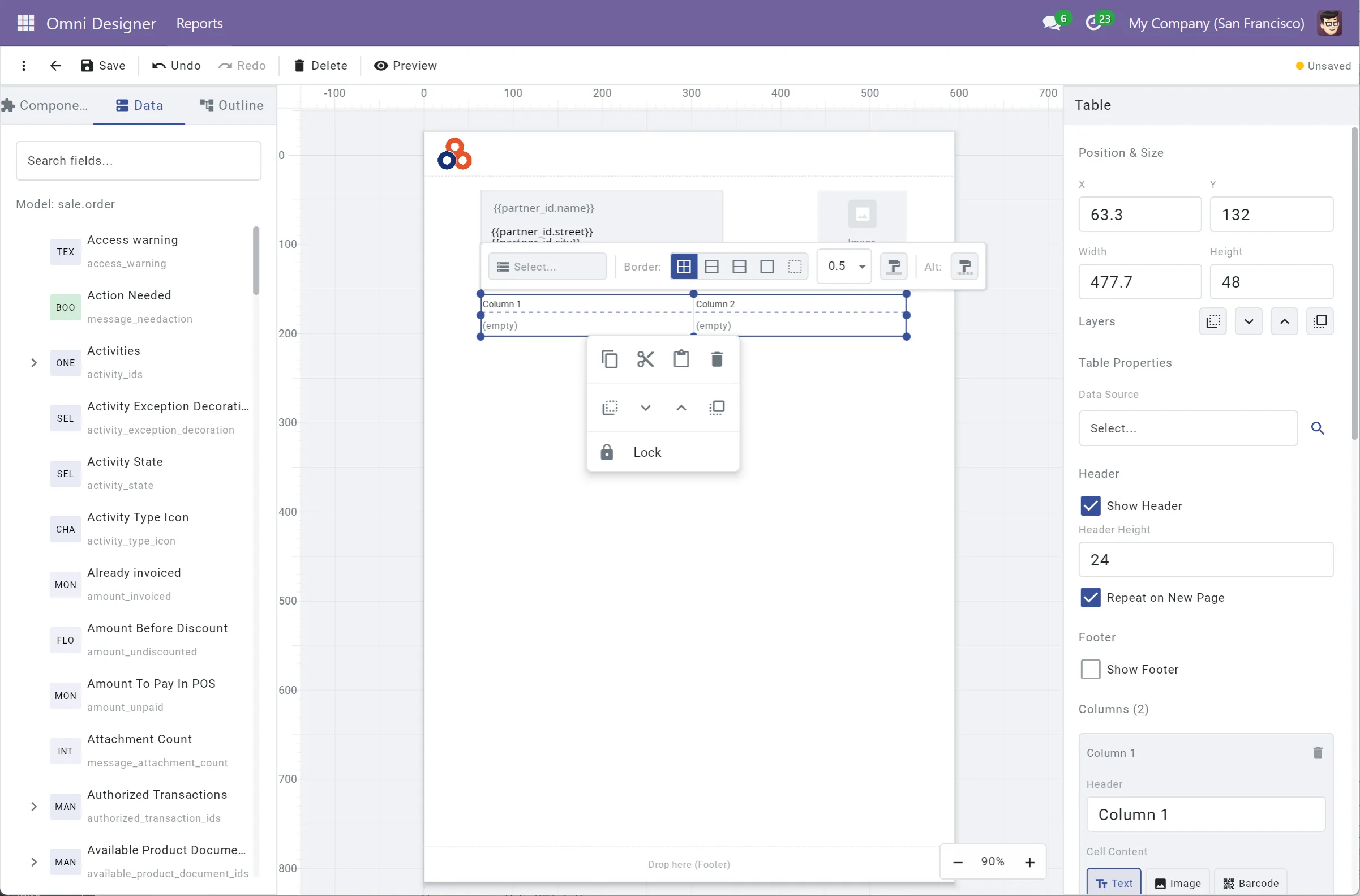
Alternatively, use a Table component for structured grid layouts. Tables support:
- right-click column operations (insert, delete, copy, paste)
- draggable column borders for resizing
- switchable cell content types (text, image, barcode)
- footer rows with colspan for totals and summaries
Need a grand total in a merged footer cell? Just set the colspan and bind the field.
Style with precision
Select any element and the property panel shows its full configuration: position, size, font, color, background, borders, and padding - each side individually.
For pixel-perfect alignment, elements automatically snap to page margins and to the edges and centers of nearby elements as you drag them. Select multiple elements and use the toolbar to align or distribute them evenly, or use keyboard shortcuts like Ctrl+Shift+Arrow for quick alignment.
Add conditional logic
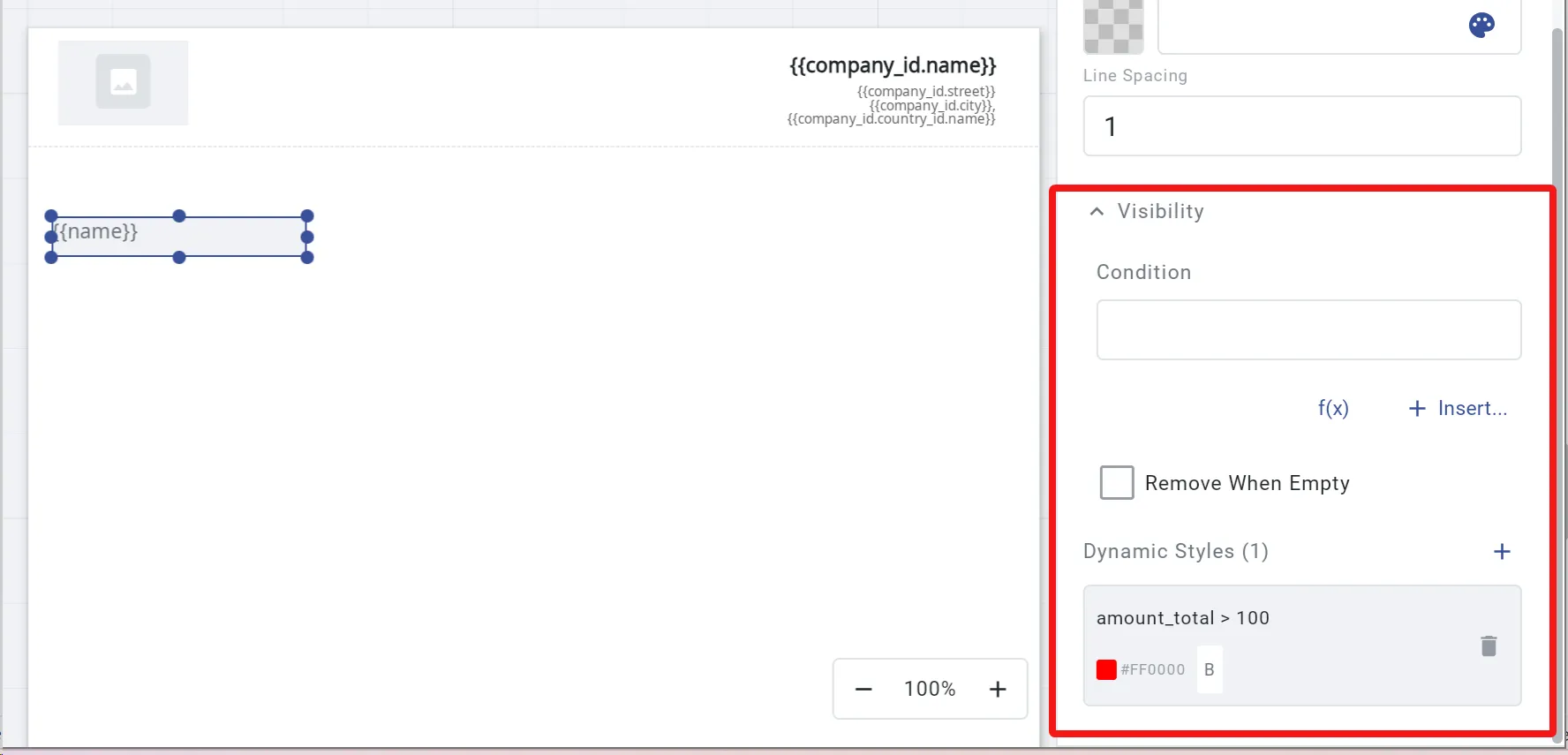
Every element has a Visibility property. Set a condition like state == 'sale' and that element only renders when the condition is met. Hide discount columns when there is no discount. Show tax disclaimers only for international orders.
Beyond visibility, Dynamic Styles let you apply conditional formatting: turn text red when amount < 0, highlight a row yellow when priority == 'urgent'. Rules are expression-driven and evaluated in order.
Preview instantly
Click the Preview button. Select which records to render against. Omni Designer generates a pixel-accurate PDF directly in your browser and opens it immediately.
No round-trip to the Odoo server. No waiting for wkhtmltopdf. The PDF you see is the PDF your customer will receive.
What makes this different
WebAssembly-powered, like Figma
Omni Designer is not a typical JavaScript web app. Like Figma, it uses WebAssembly to run a compiled, high-performance rendering engine directly in the browser.
This matters for reports because the same layout engine that calculates text measurement, line breaks, page splitting, and element positioning at design time is the exact same engine that produces the final PDF. There is no “preview looks different from output” problem. What you see on canvas is what ends up on paper.
Because the entire engine runs client-side, PDF generation is fast and does not depend on server resources. Even complex multi-page reports with tables, sections, and images render in seconds.
A real expression engine
Omni Designer includes a built-in expression engine with over 30 functions. You are not limited to simple field references:
- String:
upper(),lower(),replace(),format(),split(),join() - Math:
round(),sum(),average(),min(),max(),count() - Logic:
any(list, x => expr),all(),countIf() - Ternary:
amount > 0 ? "Credit" : "Debit"
Expressions can be embedded directly into text content, making it easy to mix static labels with dynamic values - for example, combining an invoice number with a partner name in a single text element.
Multi-script typography
Reports are international. Omni Designer includes fallback fonts for CJK, Arabic, Hebrew, Thai, Devanagari, and Cyrillic scripts. Mixed-language documents render correctly without manual font configuration.
Everything you need for professional documents
The component library covers what real business documents actually require:
- Text and Field elements with full typography control
- Images with static, URL, or Odoo binary field sources
- Tables with header, data, and footer rows
- Sections for repeating data (order lines, invoice lines)
- Barcodes and QR Codes (EAN-13, Code 128, Code 39, and more)
- Shapes (rectangle, ellipse, triangle, star) and Lines
- Frames for grouping elements
- Page Breaks for manual pagination control
Every element supports lock/unlock, conditional visibility, dynamic styles, and precise positioning.
Where it fits
Omni Designer is built for teams that need custom Odoo reports but cannot afford to turn every layout change into a development task.
A few concrete examples:
Sales teams who want branded quotations with the company logo, conditional discount columns, and a polished multi-page layout - without filing a dev ticket every time the marketing team updates the brand guidelines.
Warehouse operations that need packing slips with barcode-scanned tracking references ({{carrier_tracking_ref}}), conditional highlighting for fragile items, and section-based grouping by delivery route.
Finance departments building invoices with merged footer cells for tax breakdowns, conditional visibility for payment terms based on partner country, and dynamic styling that flags overdue amounts in red.
POS environments generating receipts on 80mm thermal printers with continuous page layout - Omni Designer supports this through the companion Omni Report POS module.
Getting started
Omni Designer is available on the Odoo App Store and supports Odoo 16, 17, 18, and 19.
The fastest way to start:
- Install the
omni_designermodule in your Odoo instance. - Navigate to any report template and click Open Designer.
- Drag, bind, style, preview, save. That is the whole workflow.
For a guided walkthrough, start with the Quick Start guide. For a deeper look at the workspace, read the Interface Guide.
We built Omni Designer because report design in Odoo deserved better tooling. If you have been spending hours in QWeb templates for changes that should take minutes, give it a try.