
Quick Start
Creating a report in Omni Designer is quick and visual. Follow these steps to generate your first document from scratch.
Prerequisites
Section titled “Prerequisites”Before you begin, make sure:
- The omni_designer modules are installed in your Odoo instance.
- You have the Omni Report Manager access rights (group
omni_report.group_omni_report_manager).
1. Create a Report Template
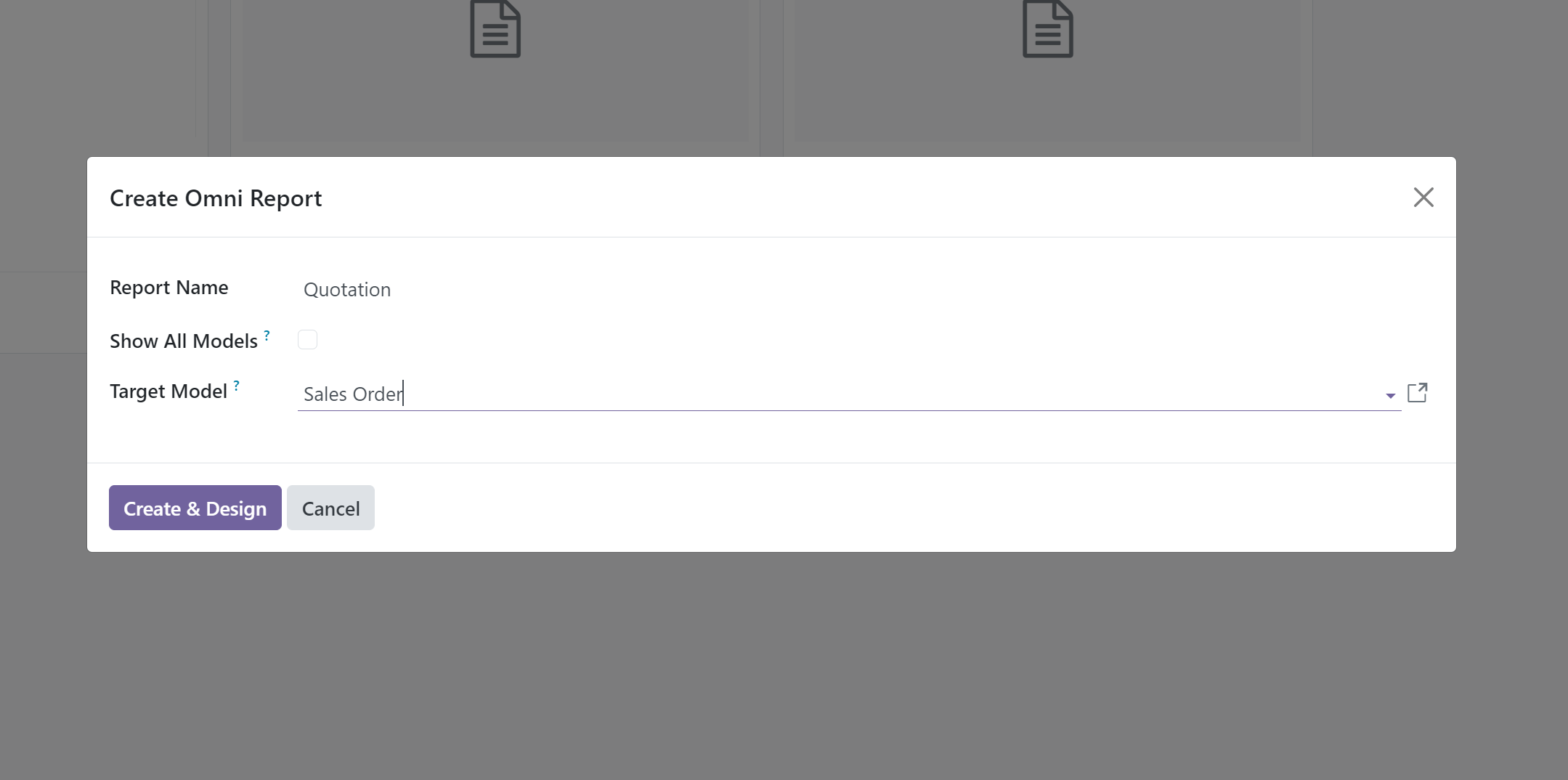
Section titled “1. Create a Report Template”First, you need to create a report template in Odoo, or open an existing one.
- Navigate to Settings > Technical > Reporting > Reports.
- Click New or select an existing report.
- If creating a new report, fill in the Report Name, Report Type (PDF), and target Model (e.g.,
sale.order).
2. Open the Designer
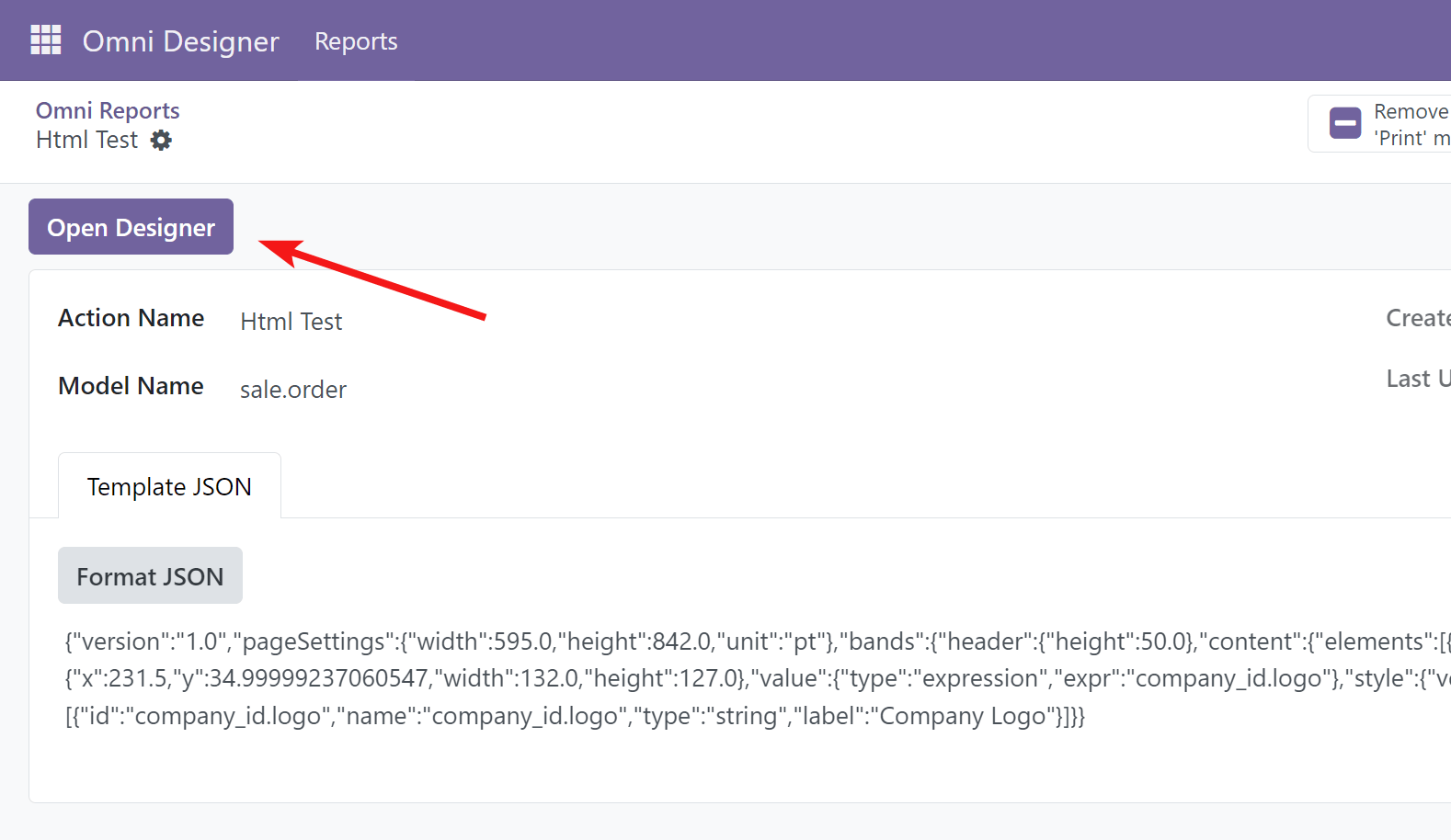
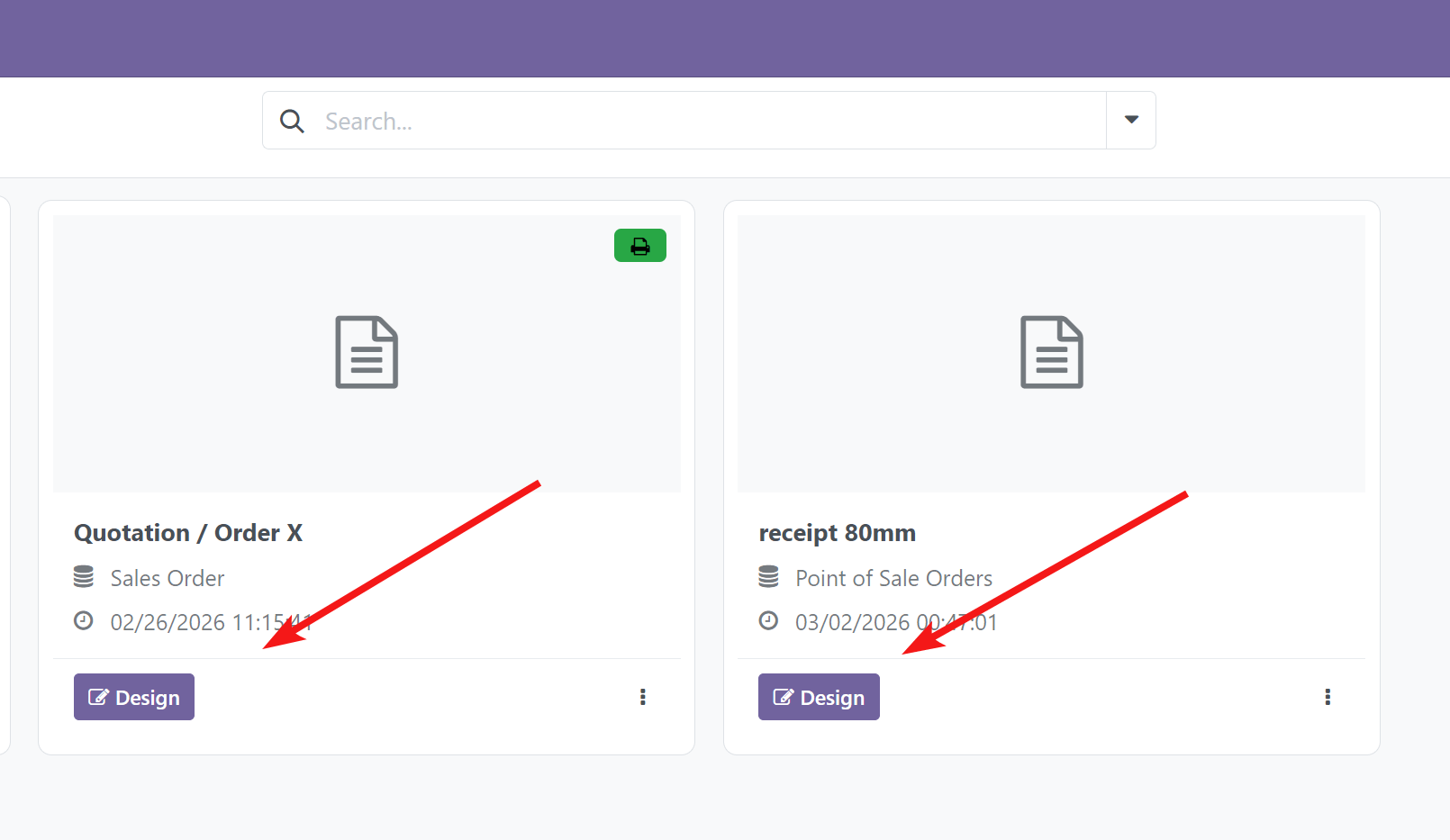
Section titled “2. Open the Designer”Once you have a report template configured:
- Look for the Open Designer button in the report form header or the Design button in the Kanban view.
- Clicking this button will launch the Omni Designer interface within your browser.
3. Explore the Workspace
Section titled “3. Explore the Workspace”The designer workspace opens with four main areas:
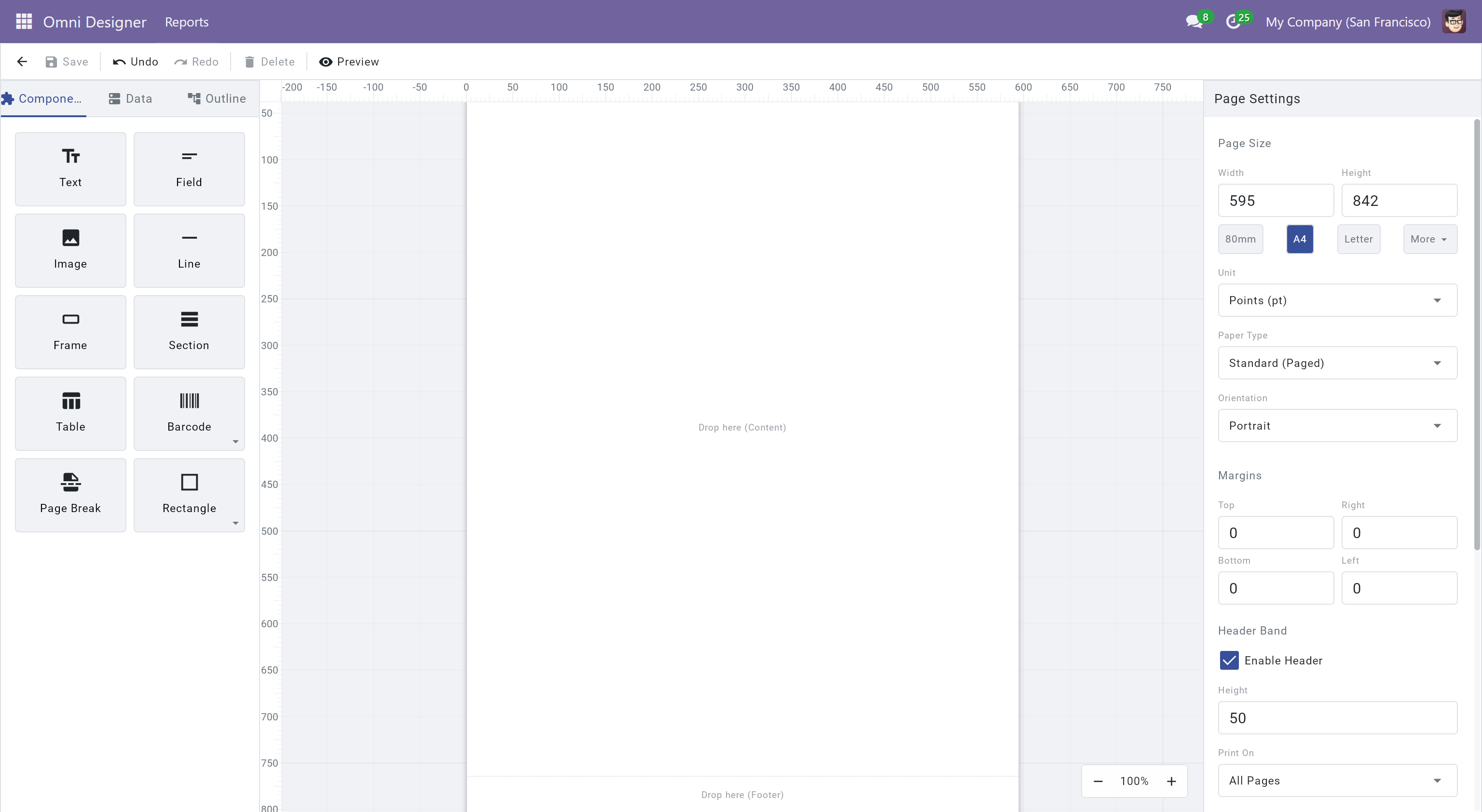
- Toolbar (top) Save, Undo/Redo, Delete, Preview
- Sidebar (left) Components, Data fields, Outline tree
- Canvas (center) Your report page with rulers and margins
- Property Panel (right) Styling and configuration for selected elements
4. Add Components and Bind Data
Section titled “4. Add Components and Bind Data”- Add Elements: Open the Components tab on the left sidebar and drag a
Text,Table, or any other element onto the canvas. - Bind Data: Switch to the Data tab to browse available fields for the current model. Drag and drop fields directly onto the canvas the designer will automatically create properly bound elements.
- Format Layout: Click any element to select it, then use the right Properties panel to adjust font size, color, borders, and margins.
Video placeholder
Full design flow: drag components, bind data, and style elements
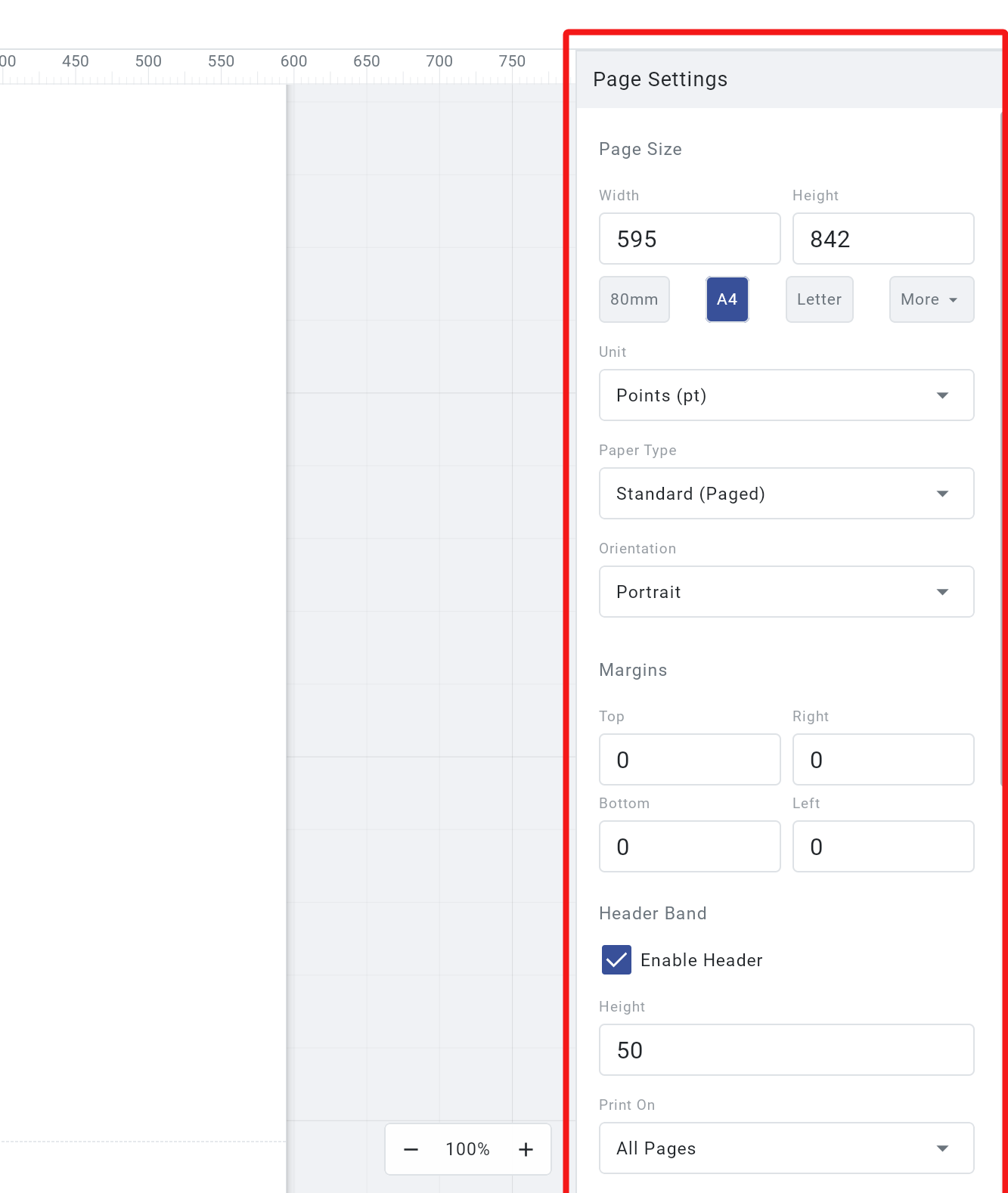
5. Configure Page Settings
Section titled “5. Configure Page Settings”Click an empty area of the canvas (deselect all elements) to access Page Settings in the Property Panel:
- Paper size A4, Letter, Legal, and more
- Orientation Portrait or Landscape
- Margins Top, Bottom, Left, Right
- Header & Footer Enable page headers and footers with configurable heights
6. Preview and Save
Section titled “6. Preview and Save”Omni Designer generates PDF previews instantly in your browser without communicating back to the Odoo server.
- Click the Preview button (eye icon) in the top toolbar to see exactly how your report will look when printed with real data.
- Select which records to use for the preview from the record picker dialog.
- If you are satisfied with the result, click the Save button (disk icon) or press
Ctrl + S(Cmd + Son macOS). - Check the “Unsaved” indicator dot on the right side of the toolbar to ensure your changes are safely stored.
Video placeholder
Previewing a report with real Odoo data and saving
Congratulations! You have successfully created and styled a custom Odoo report. Proceed to the Interface Guide to learn more about the tools at your disposal.