
AI Assistant Overview
What it can do
Section titled “What it can do”The AI Assistant lives inside the Omni Designer canvas and works on the template you have open. It can:
- Create tables from natural language - Describe the report you need and the assistant builds real table elements on the canvas.
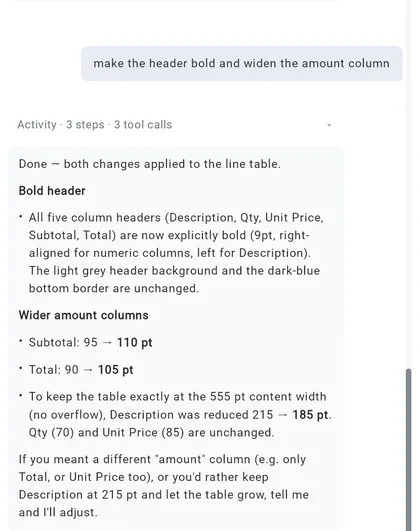
- Restyle existing elements - Change fonts, colors, borders, padding, and alignment by asking in plain language.
- Wire up expressions - Connect Odoo fields, relational data, and computed expressions without hand-editing bindings.
- Use table-aware tools - The assistant drives dedicated template tools, so edits stay consistent with the underlying report structure instead of blindly rewriting markup.
- Start from official templates - The assistant can read the official report templates as a reference instead of starting blind.
See Usage for the panel, screenshots and sessions.
Official report templates
Section titled “Official report templates”Omni Report ships with 10 official templates: Invoice, Sales Order / Quotation, Purchase Order, Delivery Slip, Picking Operations, Payment Receipt, Manufacturing Order, Expense Report, Product Label, and POS Receipt.
The assistant reaches them through three read-only tools:
- list (
report_list_official_templates) - filters templates by Odoo model or keyword and returns the id, label, target model, and tags of each match. - search (
report_search_official_templates) - returns the matching lines and their surrounding context from the template files, optionally limited to a single template. - read (
report_read_official_template) - reads a template section by section (header, content, footer) or a character offset window.
What the assistant reads is a reference layout, not a finished binding: the field paths in a template are examples, and it remaps them to the real fields of the model the current report is bound to before writing anything. The tools return sections or snippets of up to 12000 characters per call (6000 by default), so the assistant never seeds a whole template at once.
The tools run inside the designer and need no MCP server; the Odoo side only exposes read-only RPC endpoints.
Where to find it
Section titled “Where to find it”The AI panel appears on the right side of the Omni Designer canvas. It shows up automatically once all required modules are installed: omni_designer, omni_report, and the free omni_ai module. Users must belong to the Omni AI User permission group to see and use it (see Permissions and Limits).
Bring your own key
Section titled “Bring your own key”The AI Assistant is BYOK: you connect your own AI provider, your key stays in your Odoo database, and you pay the provider directly. See Provider Setup.
Version support
Section titled “Version support”The AI Assistant ships with Omni Designer on Odoo 16.0, 17.0, 18.0, and 19.0. It needs the free omni_ai module, and an administrator must have enabled at least one AI provider and set its default provider and model before users can chat.
Get started
Section titled “Get started”New to the panel? Start with Usage.