
AI Assistant Permissions and Limits
Who can use it
Section titled “Who can use it”Omni AI has no top-level app menu, so every surface sits behind an access group. Three groups cover it: the Odoo System group, Omni AI Manager, and Omni AI User.
| Group | Use the panel | Read the request log | Edit providers and API keys | Change global limits |
|---|---|---|---|---|
| System | No | Yes | Yes | Yes |
| Omni AI Manager | Yes | Yes | No | Yes |
| Omni AI User | Yes | No | No | No |
The provider and model catalogs hold the API keys, so they stay behind system administrator rights. The request
log is readable by managers and by system administrators, while the Omni AI block in the Settings app
(Providers, Limits, and Behavior sections) needs Omni AI Manager. Users without the Omni AI User group do
not see the assistant panel at all and their AI requests return 403. Omni AI Manager implies Omni AI
User, and the group ships with the admin and superuser accounts as members, so an administrator usually holds
both.
Grant access
Section titled “Grant access”The assistant is hidden from users who have no AI permission:
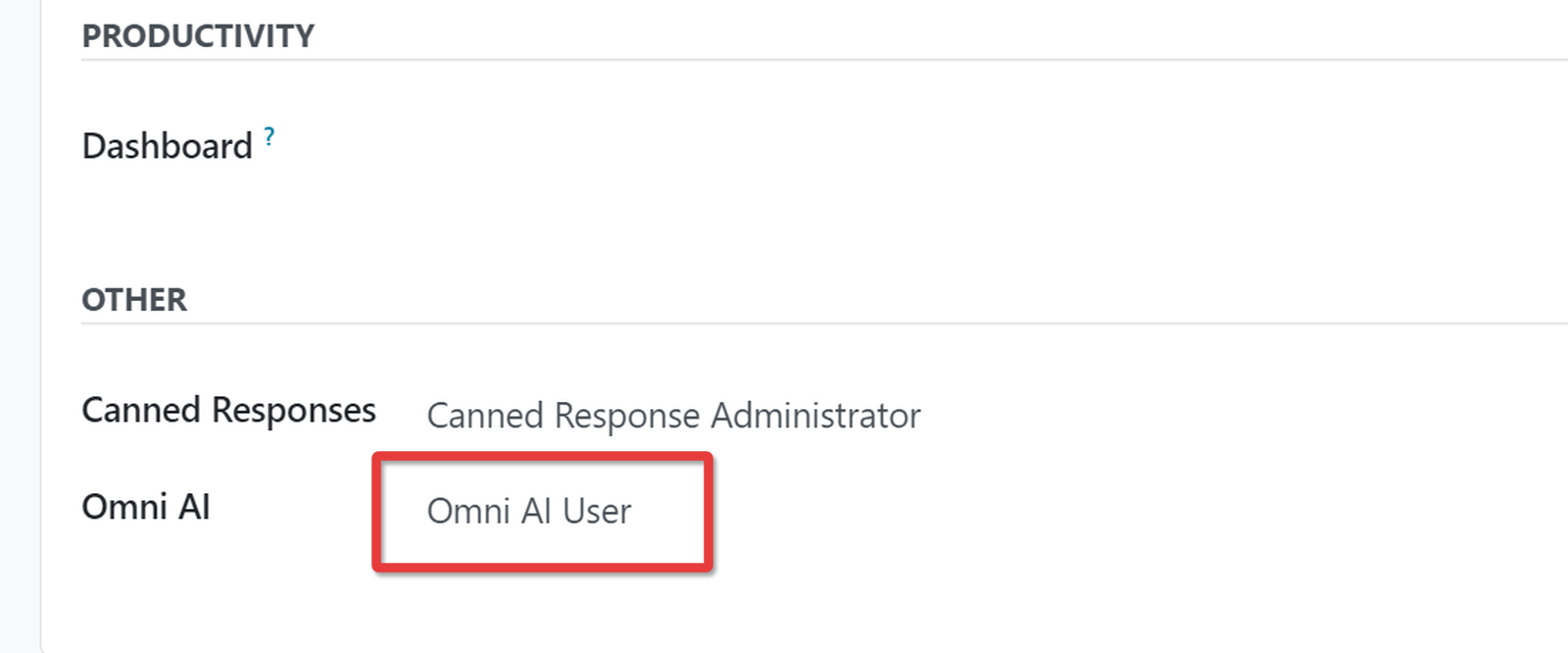
- Add users to the Omni AI User group (Settings > Users) so they can chat with the assistant.
- Members of the Omni AI Manager group can open the Settings app block and the request log, but the provider and model catalogs stay behind system administrator rights. Grant administration groups only to administrators.
Limits and defaults
Section titled “Limits and defaults”Open Settings > Omni AI and adjust the defaults inside the Limits section:
| Setting | Default | Notes |
|---|---|---|
| Timeout | 120 s | Request timeout per completion (1-600 s). |
| Rate limit | 30/min | Per user per minute; 0 disables limiting. Over-limit requests fail with AI_RATE_LIMITED. |
| Max output tokens | 16384 | Fallback output cap injected as max_tokens; 0 means do not inject. |
| Context window | 128000 | Fallback context window reported back to the designer for budget calibration. |
Behavior switches
Section titled “Behavior switches”The Behavior section of the same page holds the remaining switches:
| Setting | Default | Notes |
|---|---|---|
| Allow client model | Off | Let users pick a model other than the default in the panel. |
| Allow client reasoning effort | On | Let users choose low/medium/high reasoning effort. |
| Debug | Off | Verbose diagnostics for troubleshooting. |
| Request log | Off | Persist one log entry per request (see below). |
| Retention | 30 days | Request log retention; 0 keeps entries forever. |
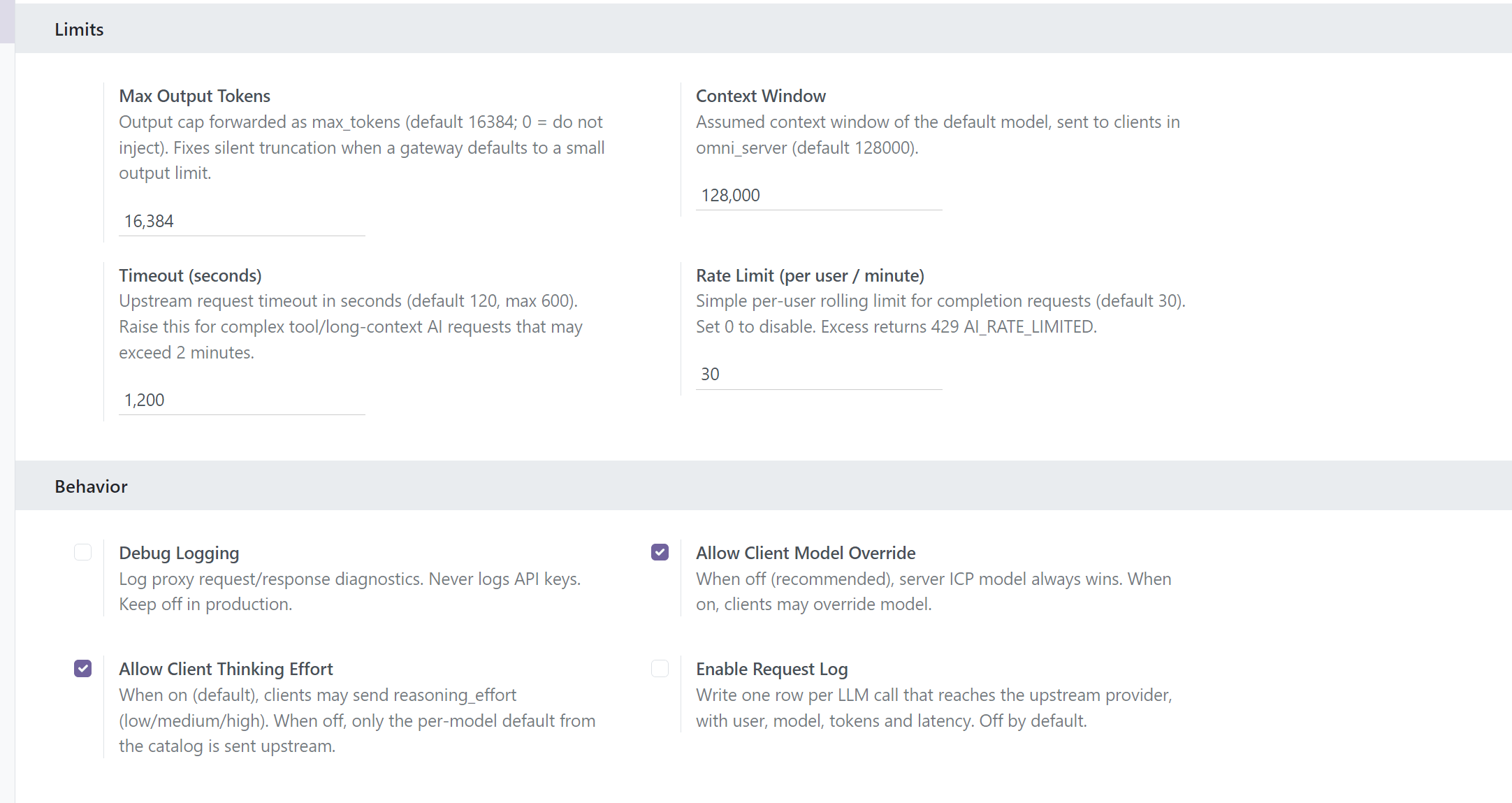
Allow client model and Allow client reasoning effort decide whether the designer panel shows a model selector and the low/medium/high thinking levels at all; when they are off, every request uses the server-side default. The user-facing side of those two switches is described in Usage.
Request log and retention
Section titled “Request log and retention”Turn on Request log and open Settings > Technical > Omni AI > Request Log to audit traffic. The Technical menu requires developer mode: enable it in Settings (General Settings, Developer Tools section), then reload. Each entry records the user, model, token usage, latency, and status of one AI request, which makes it easy to spot failing keys, slow providers, or heavy users. Entries older than the retention window are cleaned up automatically.
External API
Section titled “External API”The same providers, keys, and permissions are also available through an OpenAI-compatible endpoint, so other systems can call Omni AI without going through the designer.
GET /omni_ai/v1/modelsreturns an OpenAI-shaped model list. Model ids use the formprovider/technical_name.POST /omni_ai/v1/chat/completionsis OpenAI compatible and supports streaming (SSE), tools / function calling, and reasoning effort.
Authenticate with an Odoo API key generated in your own user preferences, sent as a bearer token. The calling user
must belong to the Omni AI User group, otherwise the request returns 403.
curl -X POST "https://your-odoo.example.com/omni_ai/v1/chat/completions" \ -H "Authorization: Bearer $ODOO_API_KEY" \ -H "Content-Type: application/json" \ -d '{ "messages": [{"role": "user", "content": "Summarize this month's overdue invoices."}], "stream": false }'Client-side parameters: messages is required; stream, tools, tool_choice, temperature, and
reasoning_effort are optional. The model field only takes effect when an administrator enables allow client
model for the configuration; otherwise the default model configured in the backend is used. max_tokens comes from
the model catalog entry, falling back to the Max Output Tokens setting (0 disables injection); values sent by the
client are ignored.
Errors come back in OpenAI shape: 400 for a malformed body or missing messages, 401 for an invalid API key,
403 for a missing permission, 422 for unsupported image input, 429 for rate limiting, 503 when no provider
is configured, 504 for an upstream timeout, and 502 for an upstream error.